Single Sign-On (SSO) allows your team members to securely access PaperSurvey using your organization's identity provider, such as Azure AD, Google Workspace, Okta, or OneLogin. By centralizing authentication, you can enforce corporate security policies while giving users a seamless login experience.
Requirements
To use SAML SSO, your team must meet the following requirements:
- Enterprise Plus Plan subscription
- Corporate email domain: The team owner must use a verified corporate email address (free email providers like Gmail, Yahoo, Outlook, and iCloud are not supported)
- Identity Provider that supports the SAML 2.0 standard
How to configure SAML SSO
1. Access SSO settings
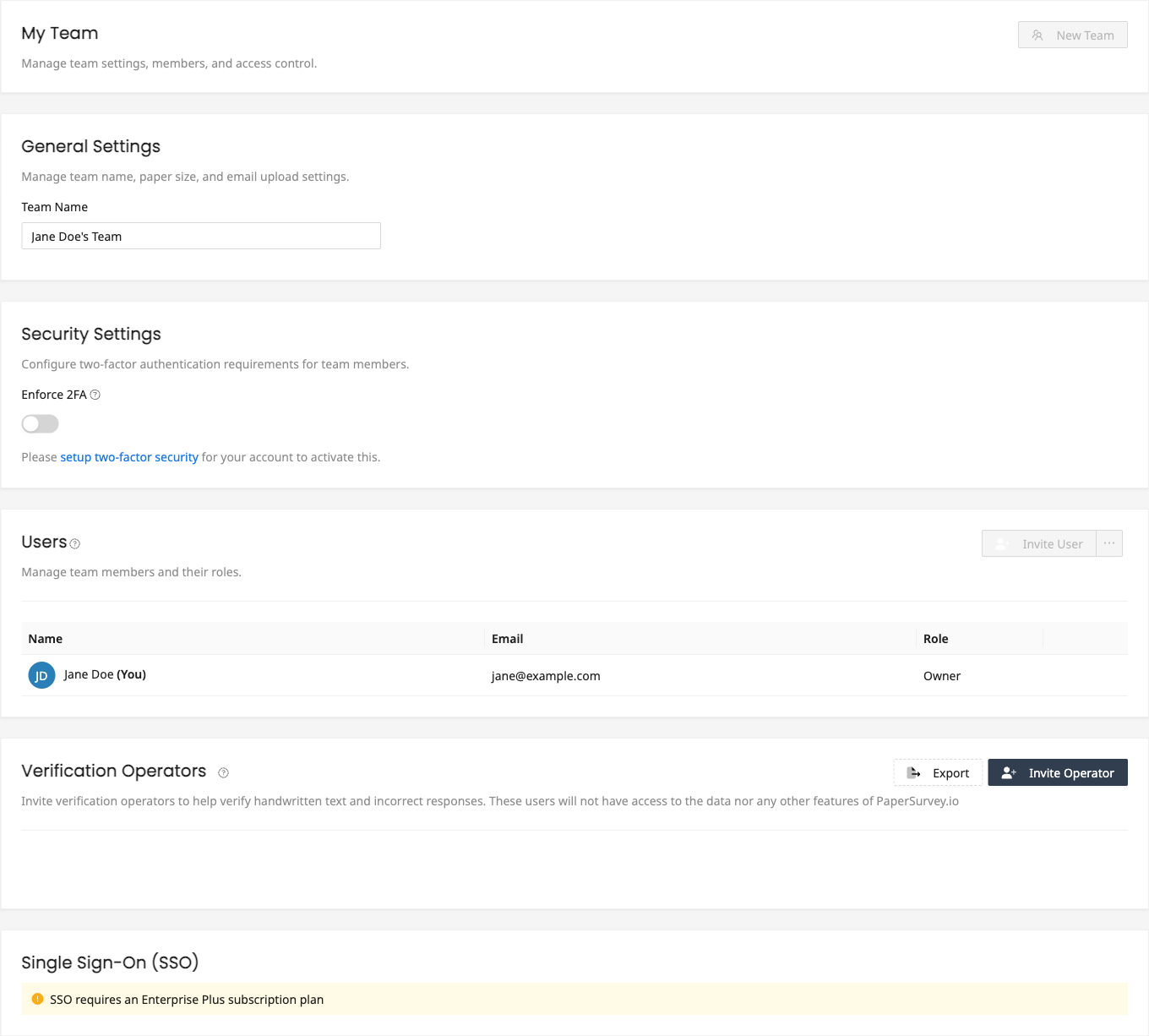
Navigate to Settings > My Team > Single Sign-On (SSO) in your PaperSurvey account. You must be a team administrator to access these settings.
When you first access the SSO settings page, PaperSurvey automatically generates a unique identifier (UUID) and creates an initial SSO configuration for your team. This UUID is immediately available and used to create your Entity ID and Metadata URL.
2. Get Service Provider information
Before configuring your Identity Provider, copy the Metadata URL displayed in the blue information box at the top of the SSO settings page.
The URL will look like: https://papersurvey.io/sso/saml/abc-123-def-456/metadata
Important: Copy the actual URL shown in PaperSurvey, not this example.
Most Identity Providers can automatically import all necessary configuration (Entity ID, ACS URL, Logout URL, etc.) from this metadata URL.
If your IdP requires manual entry, the individual URLs are also displayed in the same box:
- Reply URL (Assertion Consumer Service URL)
- Sign on URL
- Logout URL
3. Configure your Identity Provider
You'll need to create a SAML application in your IdP and provide the ACS URL and Entity ID from step 2.
Common Identity Providers:
- Azure AD (Microsoft Entra ID)
- Google Workspace
- Okta
- OneLogin
- Auth0
Refer to your IdP's documentation for specific configuration steps.
4. Import Identity Provider metadata into PaperSurvey
You have three options to configure your IdP:
Option A: Metadata URL (Recommended)
- Enter your IdP's metadata URL
- Click "Parse Metadata from URL"
- PaperSurvey will automatically extract all required settings
Option B: Metadata XML
- Copy your IdP's metadata XML
- Paste it into the metadata XML field
- Click "Parse Metadata XML"
Option C: Manual Entry
- Manually enter Entity ID, SSO URL, SLO URL, and X.509 Certificate
- This option is useful for custom configurations
5. Enable SSO features
Configure the following settings based on your needs:
Enforce SSO
When enabled, password login will be disabled for users with your email domain. Users must authenticate via your identity provider.
Just-in-Time (JIT) Provisioning
Enable Automatic Account Creation
- Enabled: New users logging in via SSO will automatically get accounts created
- Disabled: Only existing users can log in via SSO. New users must be manually invited first.
When JIT provisioning is enabled, you can configure:
Default Role for New SSO Users
- Manager: Full access to manage team, surveys, and settings
- Standard User: Can create and edit surveys, view responses
- Operator: Can scan and process responses, limited editing
- Viewer (Limited Access): Read-only access to view surveys and responses
New SSO users will be automatically added to your team with the selected role.
You can use the "View as" links in the default role field to test each role's permissions before making your decision.
Team Assignment via SAML Attributes (Optional)
If you have child teams, you can automatically assign users to specific teams based on SAML attributes from your Identity Provider.
Enable Team Assignment
- Toggle this on to enable automatic team assignment based on SAML attributes
- Requires JIT provisioning to be enabled
Configuration Steps:
- SAML Attribute Name: Specify the attribute name from your IdP (e.g.,
department,groups,memberOf) - Attribute Value to Team Mapping: Map specific attribute values to child teams
- Example: Map
department = "Engineering"to your Engineering team - Example: Map
groups = "Sales Team"to your Sales team
- Example: Map
- Also Assign to Main Team (Optional): When enabled, users will be added to both the main team and their assigned child teams
- Fallback Team (Optional): If a user's SAML attribute doesn't match any mapping, assign them to this default team instead
Example Configuration:
- SAML Attribute:
department - Mappings:
Engineering> Engineering TeamSales> Sales TeamMarketing> Marketing Team
- Fallback Team: General Team
- Result: A user with
department = "Engineering"will be automatically added to the Engineering Team. A user withdepartment = "HR"(not mapped) will be added to the General Team.
Important Notes:
- Team assignment only works if the user's SAML attribute values match your configured mappings
- If no mappings match and no fallback team is configured, the user will only be added to the main team (if "Also Assign to Main Team" is enabled)
- You can view and modify team assignments later in Settings > My Team > Users
SSO login flow
Once configured, users with your email domain will:
- Go to PaperSurvey login page
- Enter their email address
- Be redirected to your identity provider
- Authenticate with their corporate credentials
- Be redirected back to PaperSurvey and logged in automatically
If JIT provisioning is enabled and they are a new user, an account will be created automatically with the configured role.
Parent and child teams
If your organization has multiple teams in PaperSurvey:
- SSO is configured only on the main/parent team
- All child teams automatically inherit the parent team's SSO settings
- By default, SSO users are added to the parent team with the configured default role
- With Team Assignment via SAML Attributes enabled, users can be automatically assigned to specific child teams based on their IdP attributes
- Users can then access all child teams based on their team membership
Testing your SSO configuration
- Use an Incognito/Private Window to test the fresh user experience
- Test with an Assigned User who has access in your IdP
- Verify Each Step:
- Enter email at PaperSurvey login
- Verify redirect to IdP
- Authenticate at IdP
- Verify redirect back to PaperSurvey
- Confirm successful login
- Test Different Scenarios:
- New user (if JIT enabled)
- Existing user
- User with wrong domain (should fail correctly)
Security best practices
- Monitor certificate expiration dates and update before they expire
- Only assign necessary users in your IdP
- Set an appropriate default role (usually "Member")
- Enable "Enforce SSO" only after thorough testing with all users
- Review authentication logs regularly in Settings > Security
- Ensure team owner email is verified before enabling SSO
Frequently asked questions
Q: Can I have multiple identity providers? A: No, PaperSurvey supports one identity provider per team.
Q: What happens to existing users when I enable SSO? A: Existing users can continue using password login unless you enable "Enforce SSO". With JIT provisioning enabled, their accounts will be automatically linked to SSO on first SSO login.
Q: Can I disable SSO after enabling it? A: Yes, you can disable SSO anytime in the settings. Users will revert to password-based login.
Q: What if my IdP certificate expires? A: Users won't be able to log in until you update the certificate. Update metadata in PaperSurvey SSO settings as soon as your IdP rotates certificates.
Q: Why can't I use Gmail or other free email providers? A: SSO requires corporate email domains for security. Free email providers don't provide the organizational control needed for enterprise SSO.
Q: How do I migrate all users to SSO? A: Enable SSO with JIT provisioning first. Test with a few users. Once confirmed working, enable "Enforce SSO" to require all users to use SSO.
Q: What happens if we reach our member limit? A: New SSO users won't be able to log in if the member limit is reached. Contact support or upgrade your subscription to increase the limit.
Q: Does SSO work with child teams? A: Yes. SSO is configured on the parent team and automatically applies to all child teams. Users are added to the parent team and can access child teams based on their team membership. With Team Assignment enabled, you can also automatically assign users to specific child teams based on SAML attributes.
Q: Can I configure different SSO settings for child teams? A: No, SSO settings are inherited from the parent team. This ensures consistent authentication across your organization.
Q: How does Team Assignment via SAML Attributes work?
A: When enabled, PaperSurvey reads a specified SAML attribute (like department or groups) from your IdP and automatically assigns users to matching child teams. For example, users with department = "Engineering" can be automatically added to your Engineering team.
Q: What happens if a user's SAML attribute doesn't match any team mappings? A: You have three options:
- Configure a fallback team to catch unmapped users
- Enable "Also Assign to Main Team" so users are at least added to the main team
- Leave both disabled, which will result in an error and prevent login until you add the proper mapping
Q: Can I test different roles before assigning them to new SSO users? A: Yes. When configuring the default role, use the "View as" links to test each role's permissions and see exactly what new SSO users will experience.
Support
For assistance with SSO configuration or subscription upgrades, contact support@papersurvey.io.